:30
Find the port owner
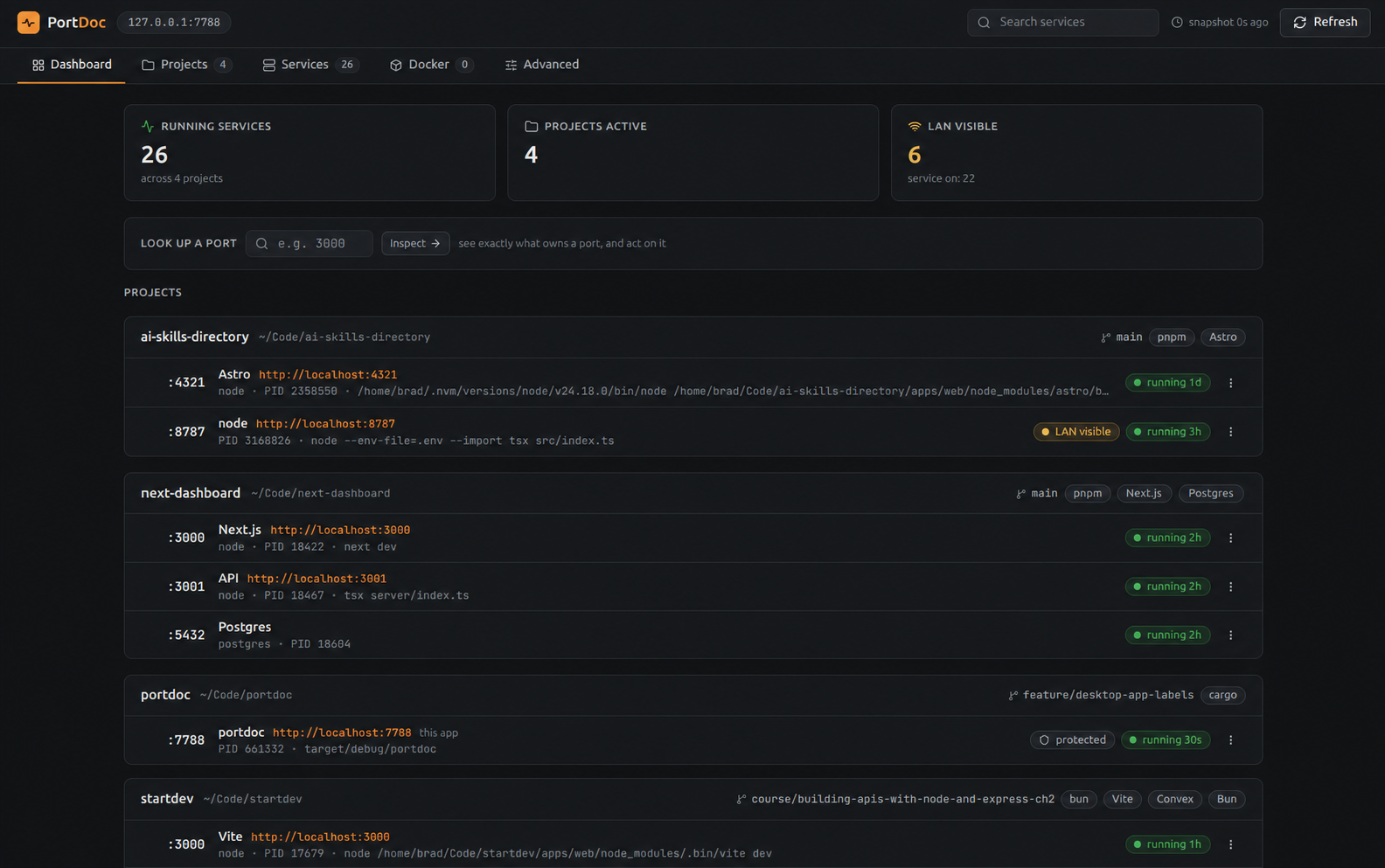
Look up any port and see the process, PID, project, command, age, and exposure in one place.
LOOK UP A PORTInspect →
3000
PortDoc shows what is running, which project owns each port, and what you can safely stop. No more digging through old terminal tabs or guessing what took port 3000.
Open source · Local only · macOS, Linux, and Windows
Built for local development
PortDoc turns raw socket and process data into a calm dashboard that makes sense to working developers.
Look up any port and see the process, PID, project, command, age, and exposure in one place.
Vite, Next.js, Express, Docker, databases, and background services are grouped under the repo that owns them.
Stop stale services with confirmation and process checks. PortDoc protects itself and verifies that the port was released.
Next.js localhost:3000
node · PID 18422 · next dev
Local, LAN-visible, Docker, and unknown services are clearly labeled so you never mistake a public bind for localhost.
Open a service URL, reveal its folder, copy the project path, or jump into your configured editor from the same dashboard.
New in v0.1.2
Run portdoc in an interactive terminal and choose whether it stays attached to that terminal or runs in the background under your operating system's native process manager.
Scripts and other noninteractive launches stay prompt-free and continue in foreground mode.
PortDoc stays attached to the current terminal. Close it with Ctrl+Cwhen you are done.
portdoc foregroundportdoc ui remains available as a foreground alias.
PortDoc starts immediately, keeps running after the terminal closes, and starts again when you sign in. Administrator access is not required.
portdoc background startInstall or refresh the manager entry, start now, and enable sign-in startup.
portdoc background statusCheck the native manager entry and PortDoc health endpoint.
portdoc background stopStop PortDoc now while keeping sign-in startup enabled.
portdoc background disableStop PortDoc and remove its sign-in startup entry.
Linux
systemd user service
macOS
LaunchAgent
Windows
Task Scheduler
Install in seconds
Install PortDoc, run one command, choose how it should run, and open a live view of the services on your machine.
Install the binary
Choose the command for your platform.
Run portdoc
Choose foreground or background when prompted.
Open the dashboard
Both modes open the same private local dashboard.
Private by default
PortDoc binds to localhost, sends nothing to the cloud, and needs no login. It is a local tool for local development, exactly as it should be.
Clear the port confusion
PortDoc is free, open source, and ready for macOS, Linux, and Windows.